
How people use it
Sixteen features doesn't mean you use all sixteen. In practice, three or four move together as a set. Here are the five combinations that come up most.
- Relationships
From a business card to the next meeting
Business cards pile up in your wallet and names stay only in your memory. When you can't find a reason to reach out six months later, it isn't indifference — it's that what you talked about isn't written down anywhere.
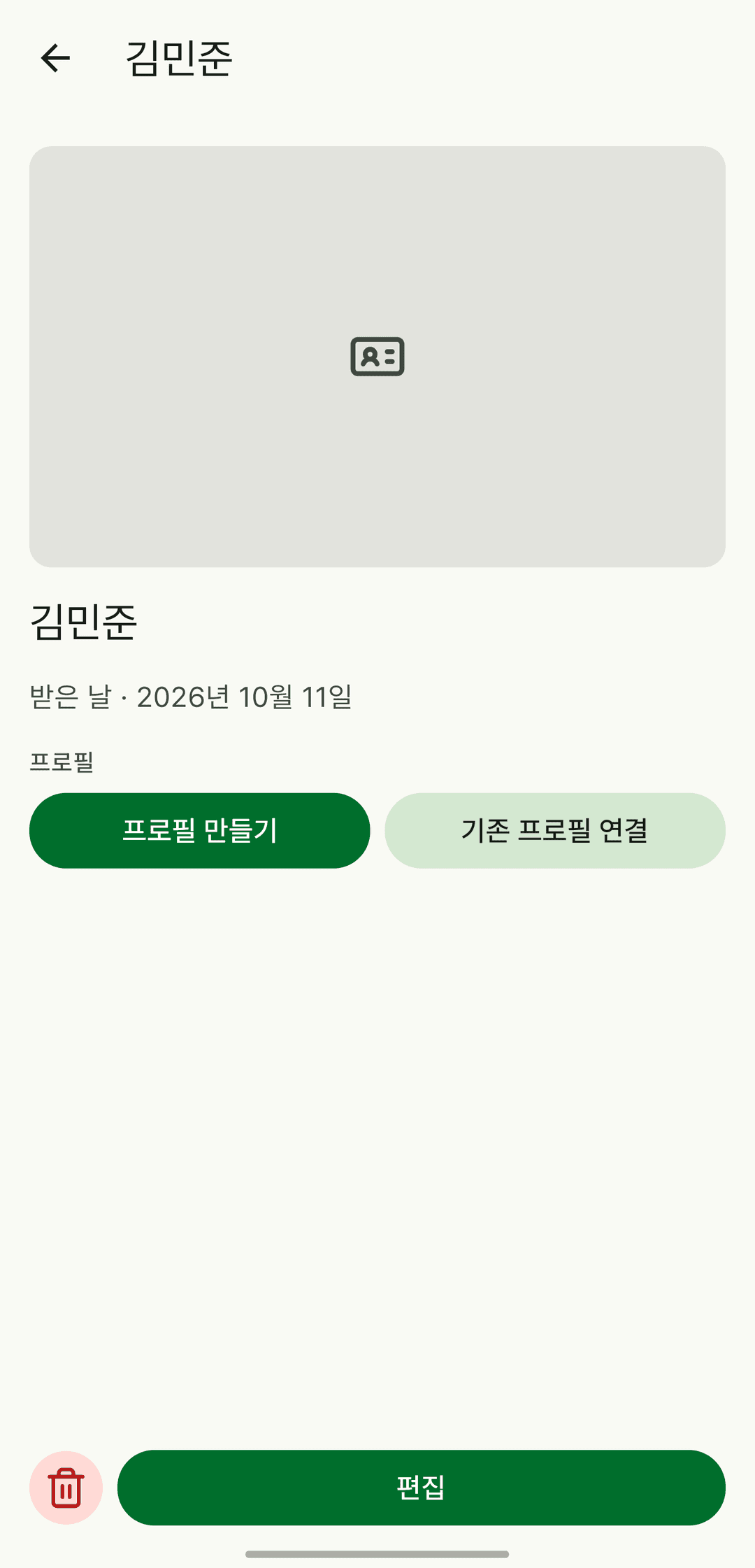
Take a photo of the card
The app reads the name, company, department, title and contact details to fill in the empty fields. You can fix the auto-filled values before saving, and text recognition happens only on your device, so the photo never leaves it.
Turn the card into a profile
The name and contact details carry over, and the date you received the card becomes the date you first met. If a profile with the same name exists, choose whether to link it or create a new one.
Tag them in that day's diary
Write what you talked about and link the profile. Next time you open that person's page, the diary entries and events you shared are lined up together.
Set a contact interval
Set it to 'every 3 months' and when it's been too long they show up in 'Time to reach out' on the home screen. The profile shows where things stand, like 'Weekly · 3 days over', and you can long-press in the home screen widget to snooze.
- Study
From your timetable to this month's completion rate
Plans only hold for the first week of the semester. The real problem isn't that they fall apart — it's that nothing records what fell apart and when, so next semester it falls apart in the same place.
Build your timetable once
See the whole week in a grid. Classes that overlap don't push each other out — they sit side by side. Make several timetables to split them by semester.
Give routines days and goals
Pick days like Mon/Wed/Fri and set a goal and unit like '30 minutes a day'. Each tap of + in the list adds up, and the seven dots and 🔥 number next to a routine show when you did it this week and how many days in a row.
Time how long you actually studied
No more guessing. Set a target time and an alert sounds when you reach it, then it stops on its own and becomes a record. The screen stays on while timing, and progress is kept as you move between tabs.
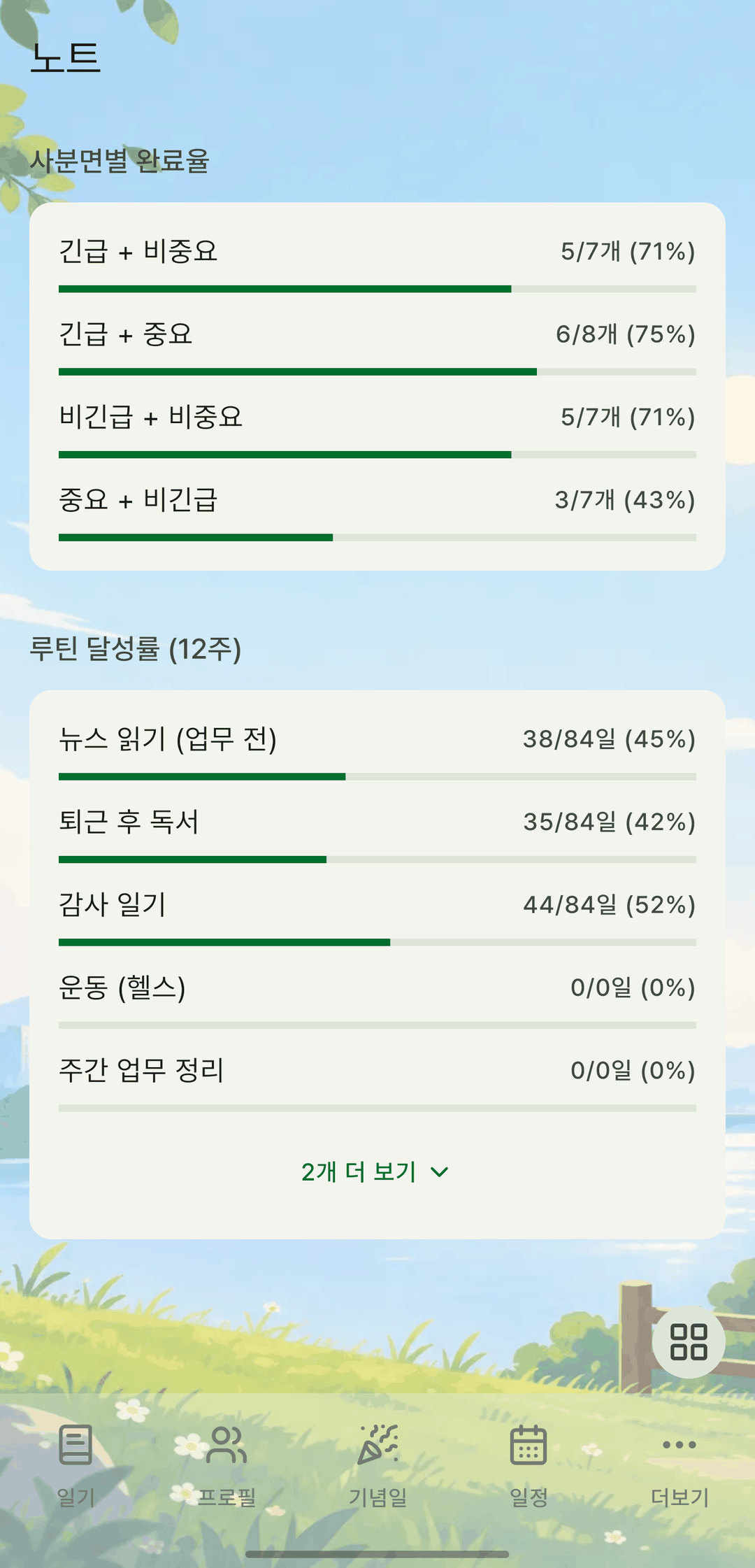
Look at your rates at the end of the month
In calendar mode each day shows that day's progress as a %, and stats line up each routine's completion rate over the last 12 weeks as bars. Open the Yearly tab to see the whole year. Changing a routine's days doesn't erase the days you already completed.
- Mood
Why that month felt so hard
You can't explain why the month before last was so heavy. Not because you didn't write anything, but because what you wrote is scattered day by day and you can't see it all at once.
Pick a sticker and write
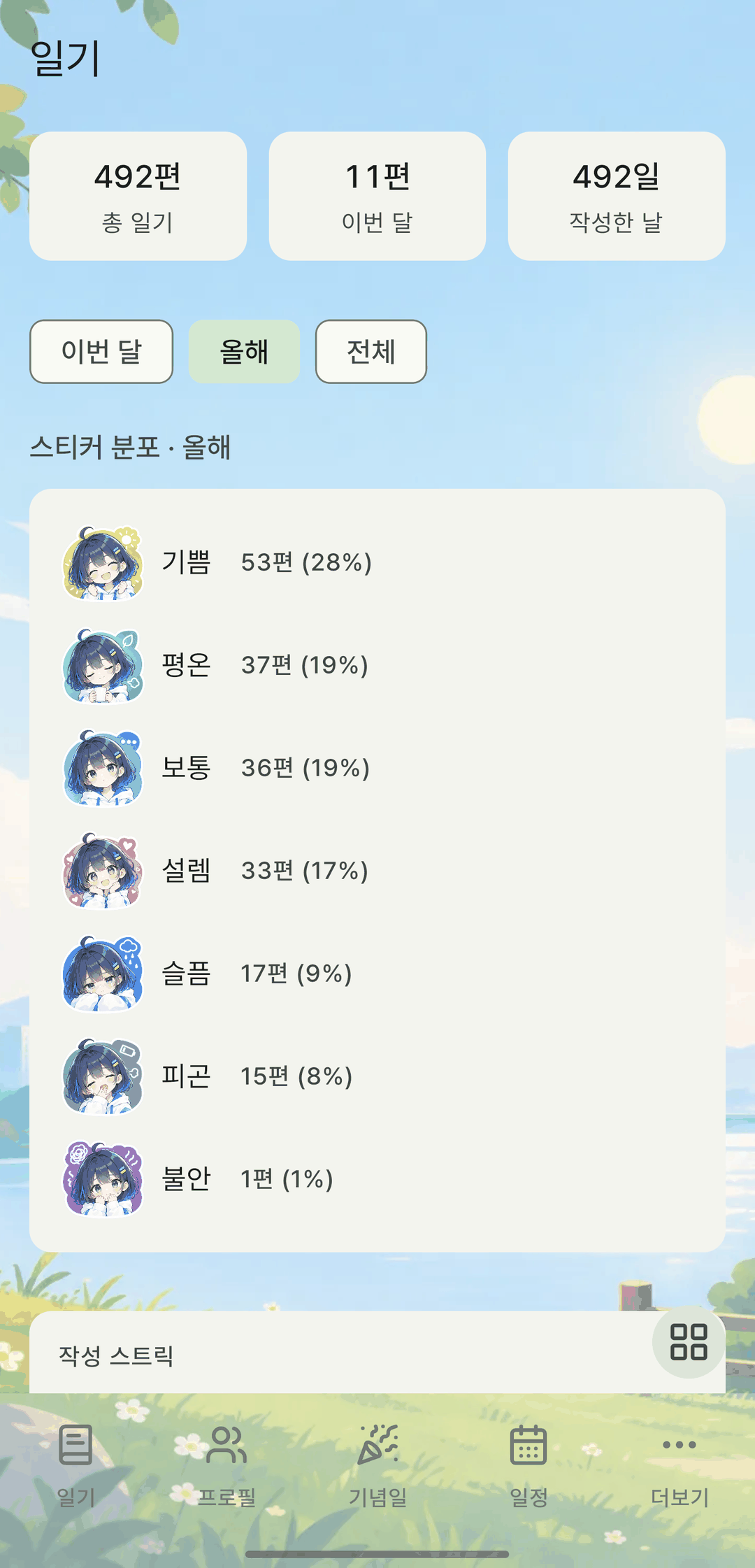
Choose a sticker that fits the day — joy, calm, excited, tired — and add the weather and place. On days with nothing to say, a sticker alone is enough. When typing feels like too much, use your keyboard's dictation.
Add photos and people
Add as many photos as you like. Tag the people you were with, and how you felt around whom collects separately in people stats.
Spread out the year in a heatmap
See which stickers you picked and how often, your writing streak and monthly trends. The calendar shows each day's sticker, too. The empty months catch your eye before the good ones.
Let 'on this day' come to you
Turn on the home screen card and entries from the same day one or two years ago come up. No need to go digging to look back.
- Family
Photos are in the album — where's the story?
Thousands of photos pile up in your gallery, but none of them say what happened that day. Years later, what matters isn't the photo but the two lines written next to it.
Write the day with its photos
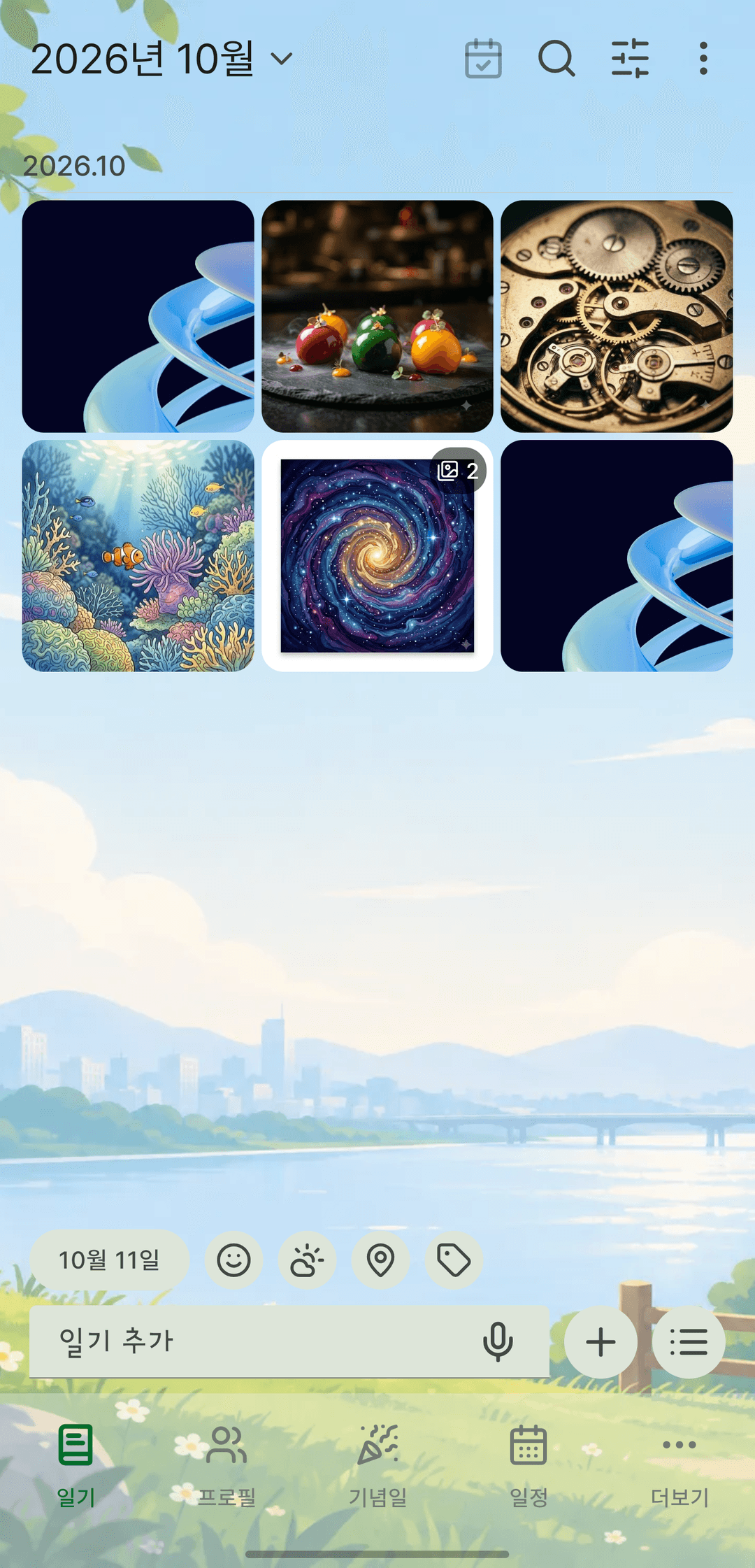
Put photos in the entry and use the gallery view to see them by month. Narrow the date range in the list and the gallery follows.
Put family in a group
Give each group a color and it stands out in lists and widgets. Link family relationships in the relationship map and who's who stays as a picture.
Set birthdays and anniversaries
They show as D-days and remind you at the time you set. Each item can have up to eight reminder times, so you can get one in the morning and one in the evening.
Back up with the photos
Zip backups include the original diary photos and profile pictures. Add a password and the backup is encrypted on your device, so wherever you keep it, it won't open without the password.
- Work
Hours worked and money spent, in one place
Time lives in a timer app, money in a budgeting app, and the review nowhere. At the end of each quarter you have to reconcile three places to see how much you worked and what's left.
Schedule work as multi-day events
Add a job that spans several days as one event and it shows on every day in between, with where you are, like 'Day 2/4'.
Record real working time with the timer
Each session's time adds up, organized into total time and days recorded. Forgot to stop it? Fix the start and end times or move it to another date.
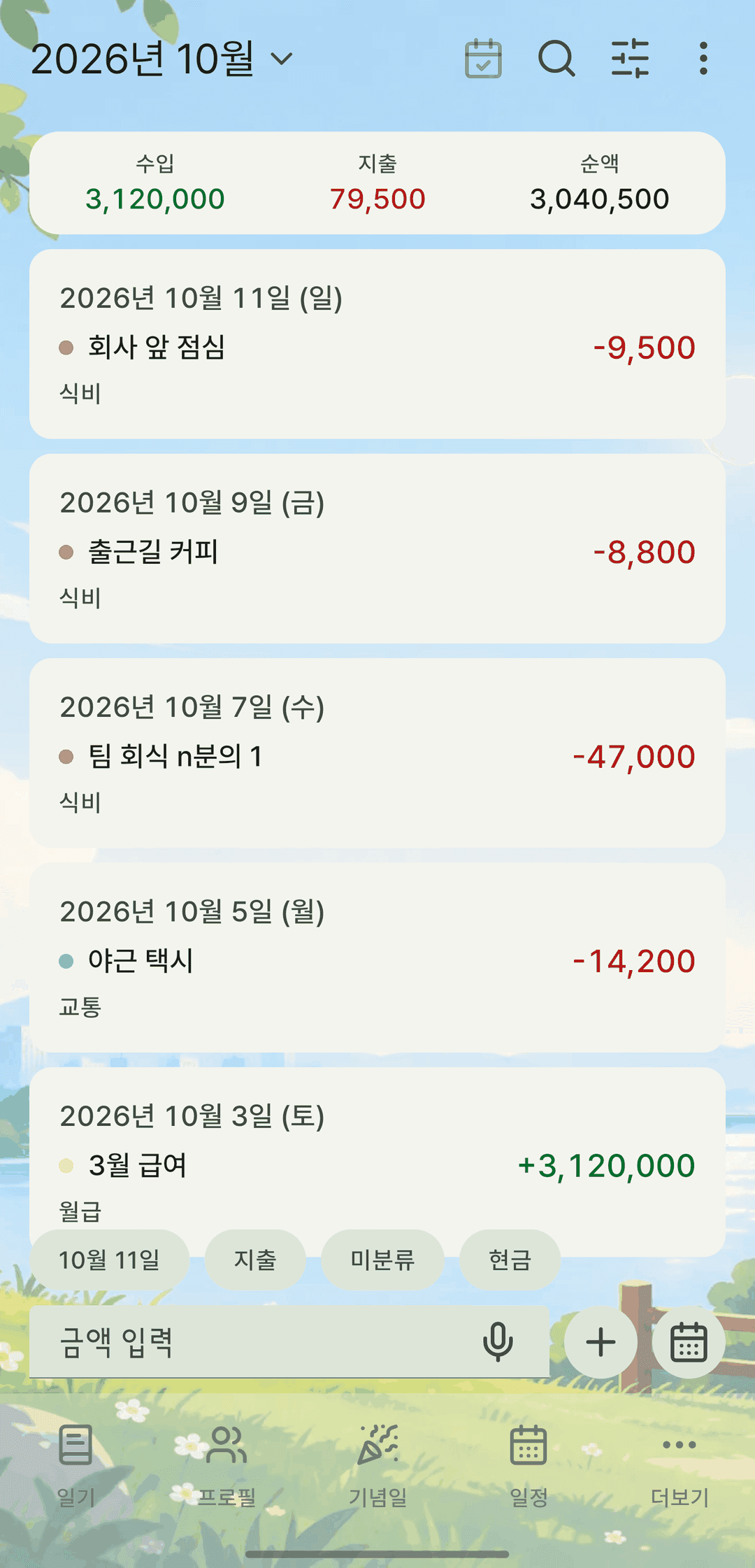
Log income and spending in the ledger
Add the amount, date and category, plus a photo of the receipt. See where the money went by category share and monthly trend, and check this month's net in the calendar view.
Review with a rating sheet
Set your own criteria and score them, then duplicate the sheet to measure next month by the same yardstick. Put two sheets side by side to compare.
Your combination isn't here? That's fine
Hide the tabs you don't use and turn home screen cards on or off. If none of these five sounds like you, keep only what you need.